Your draft list is the order you want gymnasts in. When the draft picks for you, it takes the first one on the list who is still available. Here is how to fill it and put it in order.
Where it is
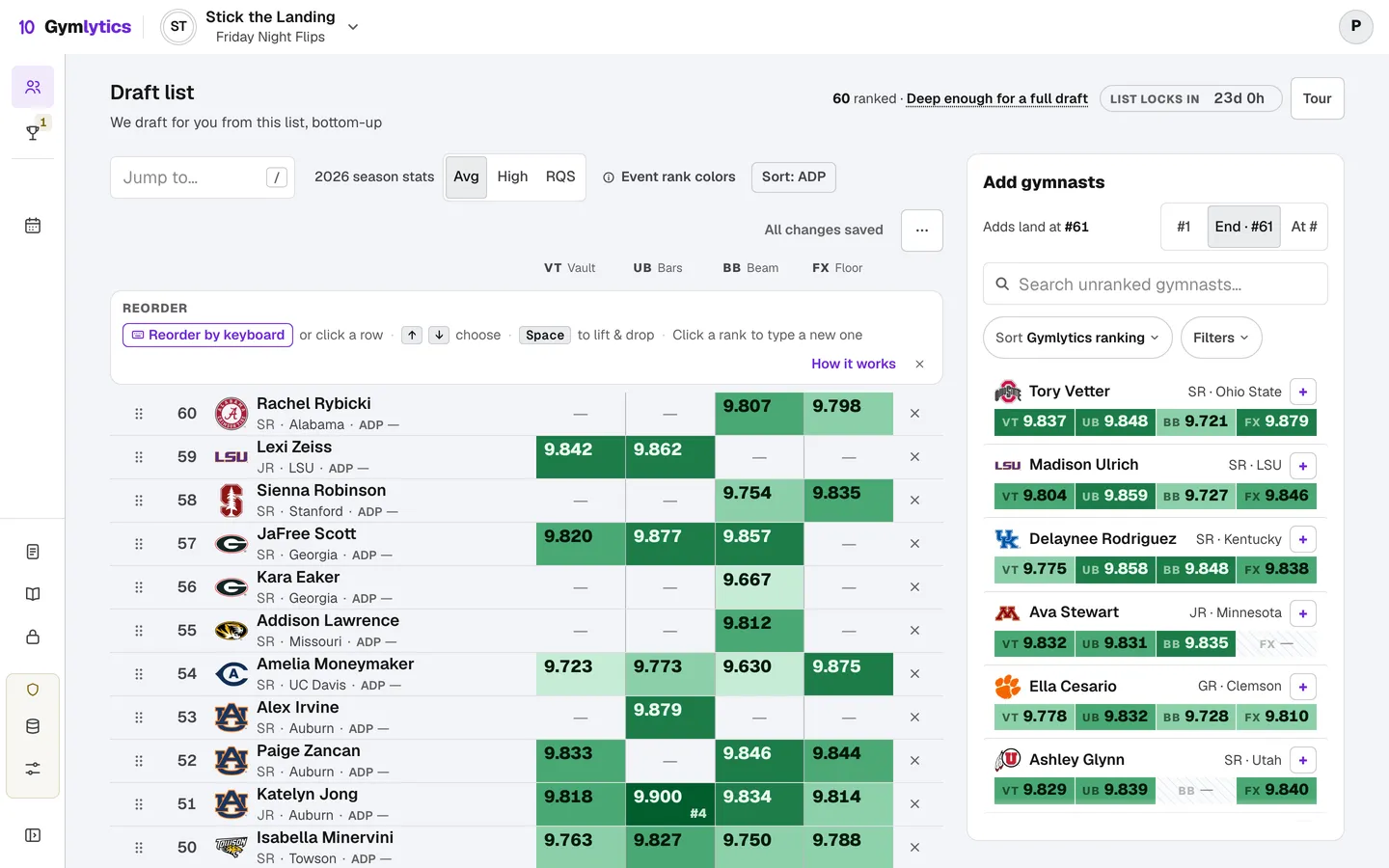
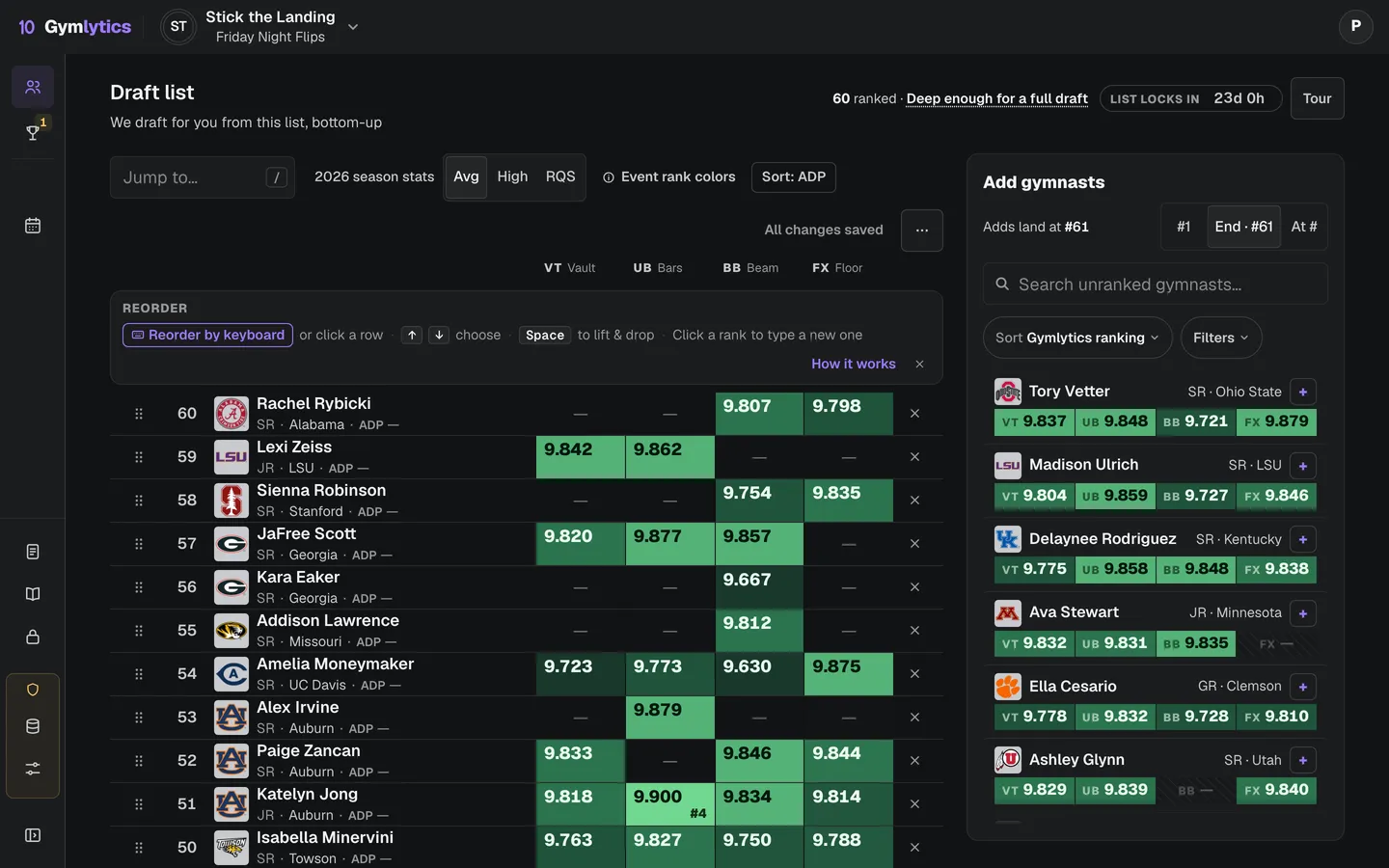
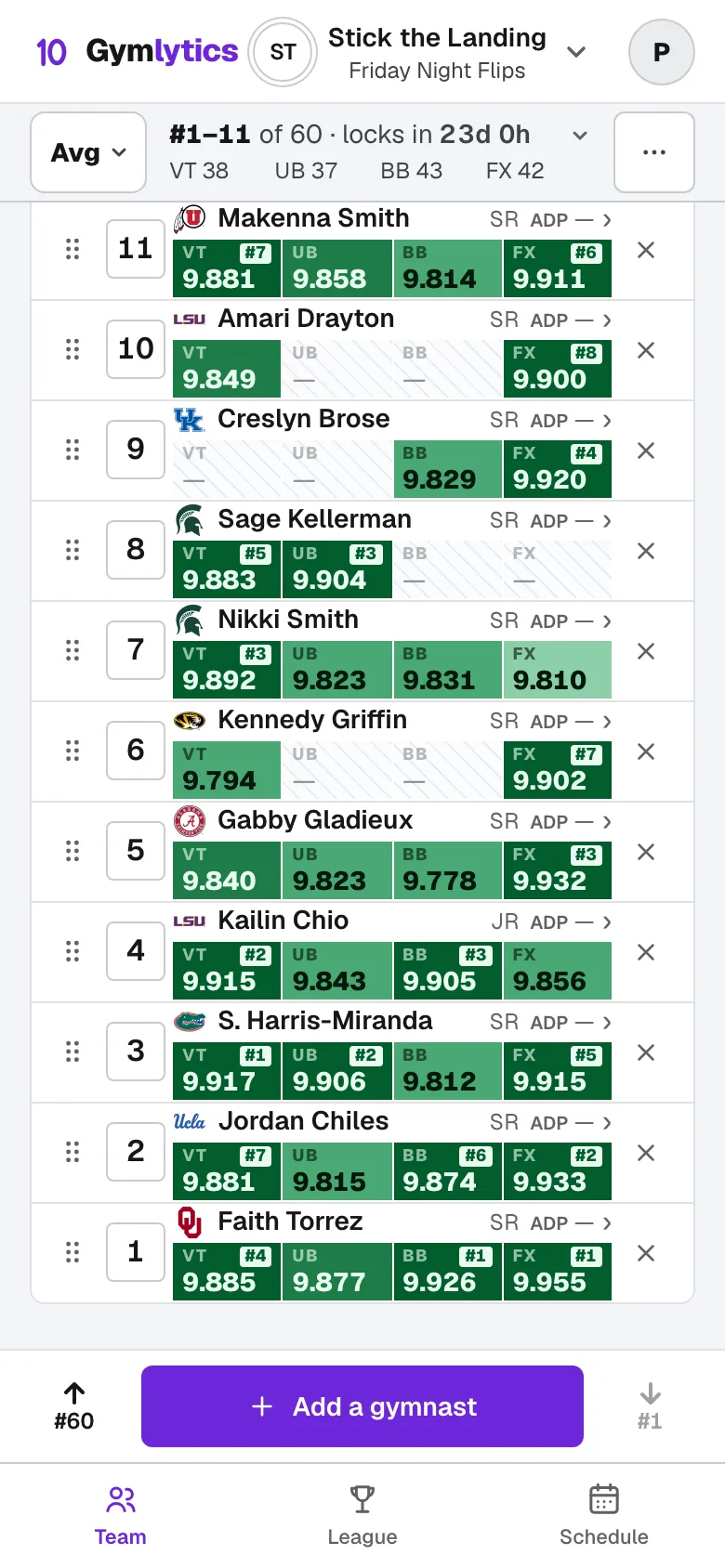
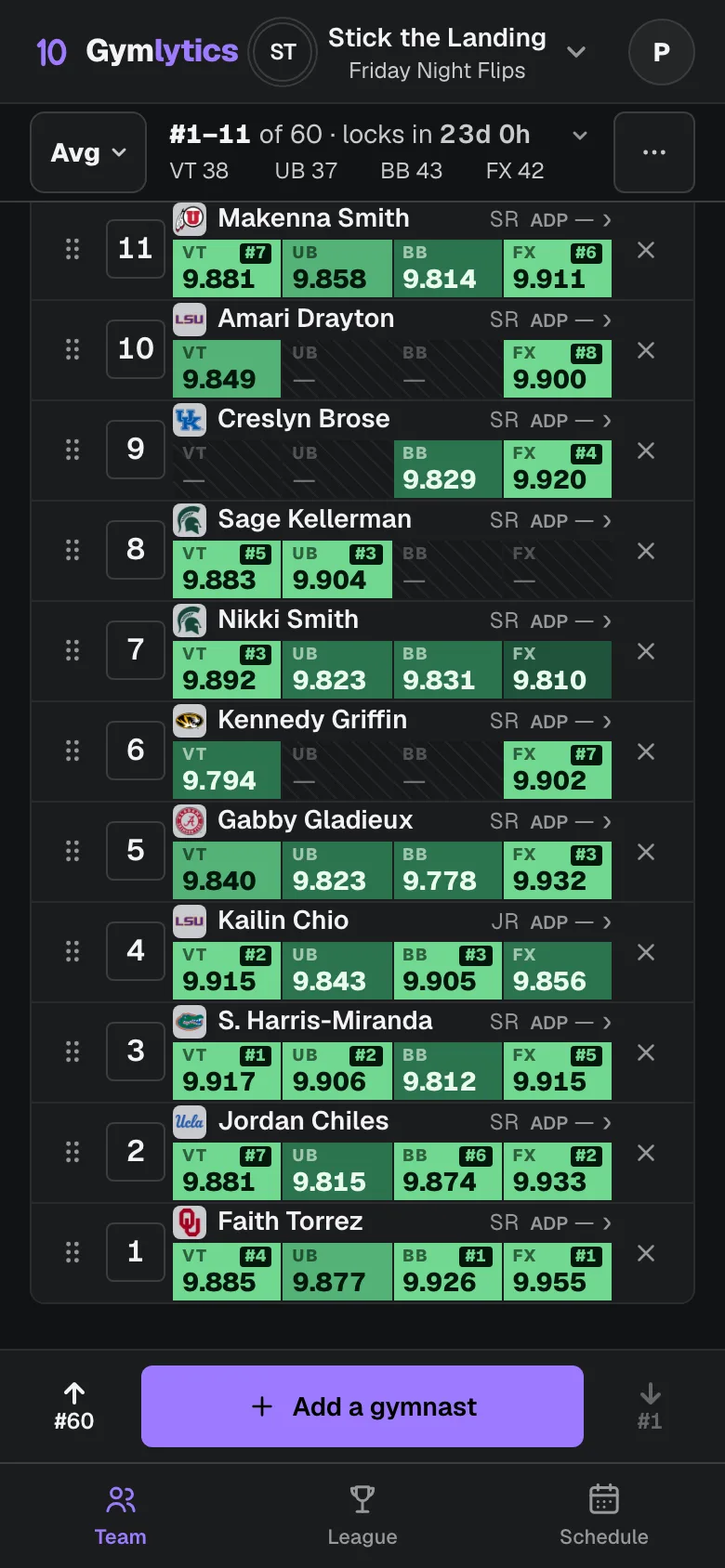
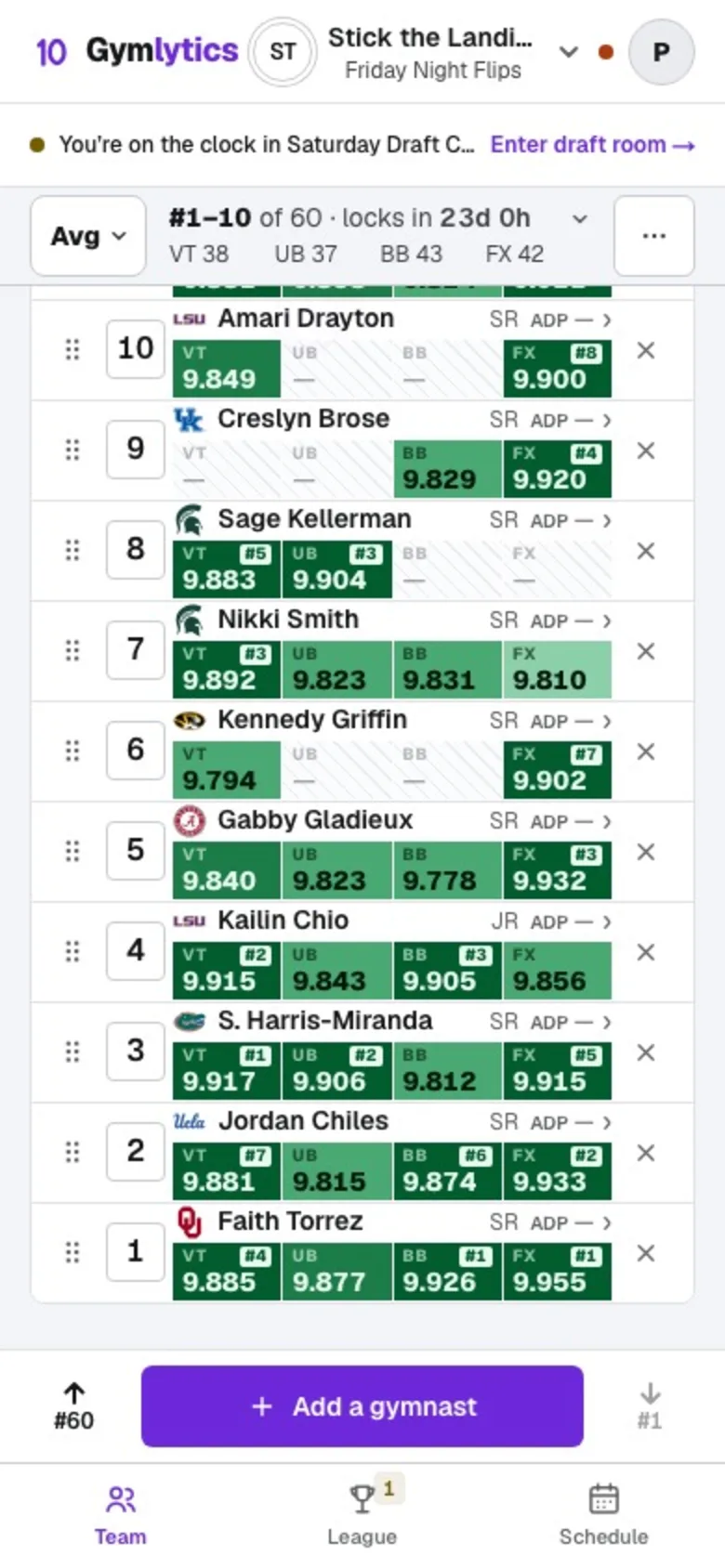
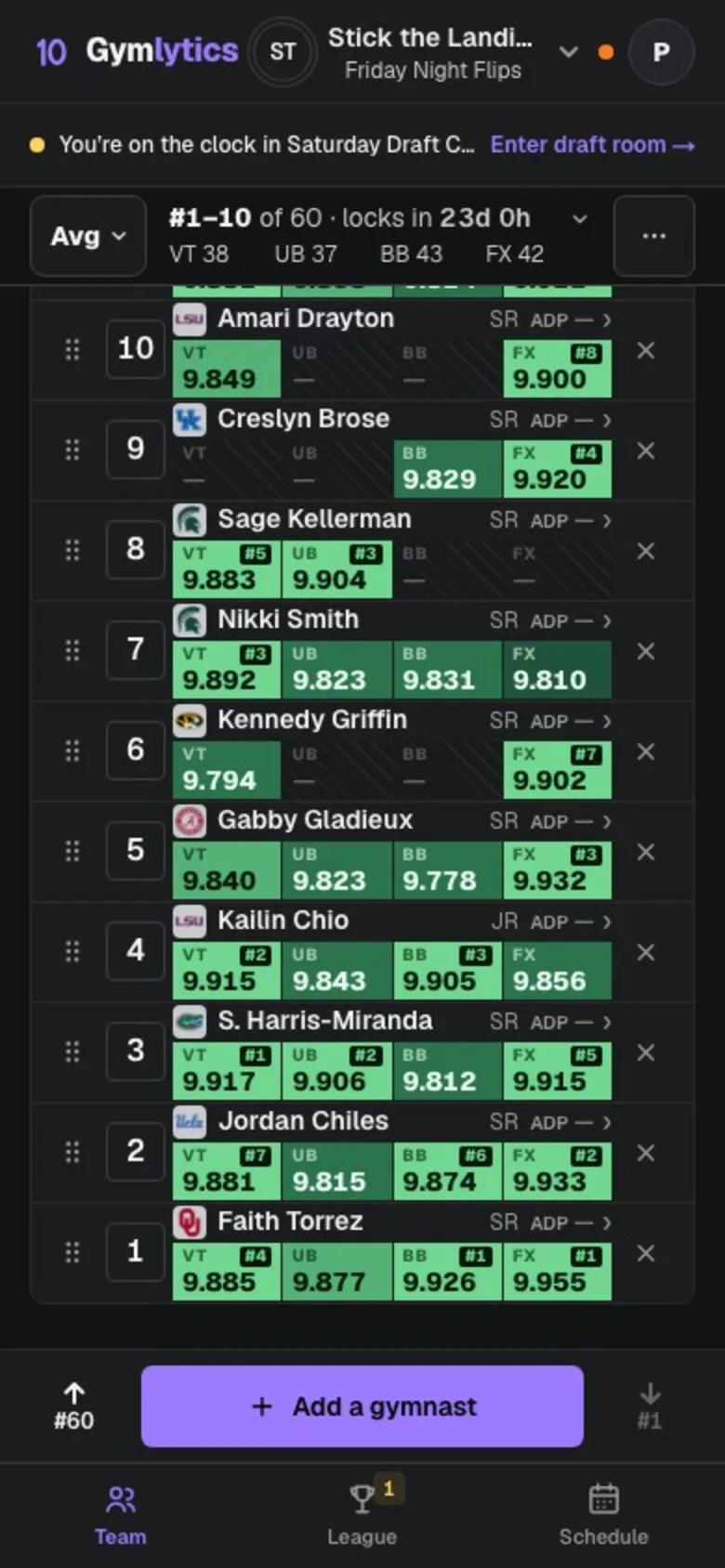
Open the Team tab. Before the draft, the team page is your draft list. A line at the top says how it is used: We draft for you from this list, bottom-up, because rank 1 is at the bottom. Each row shows the gymnast’s school, class and last season’s average on every event she competes, with her national rank on that event when she is in the top ten.
Rank 1 is at the bottom
On a phone the list starts with rank 1 at the bottom, next to your thumb and the Add a gymnast button. The arrows beside that button jump to either end. To flip it, open the ⋯ menu and switch Rank 1 at the bottom off. This only changes how the list looks on this device. The order itself stays the same.
Adding gymnasts
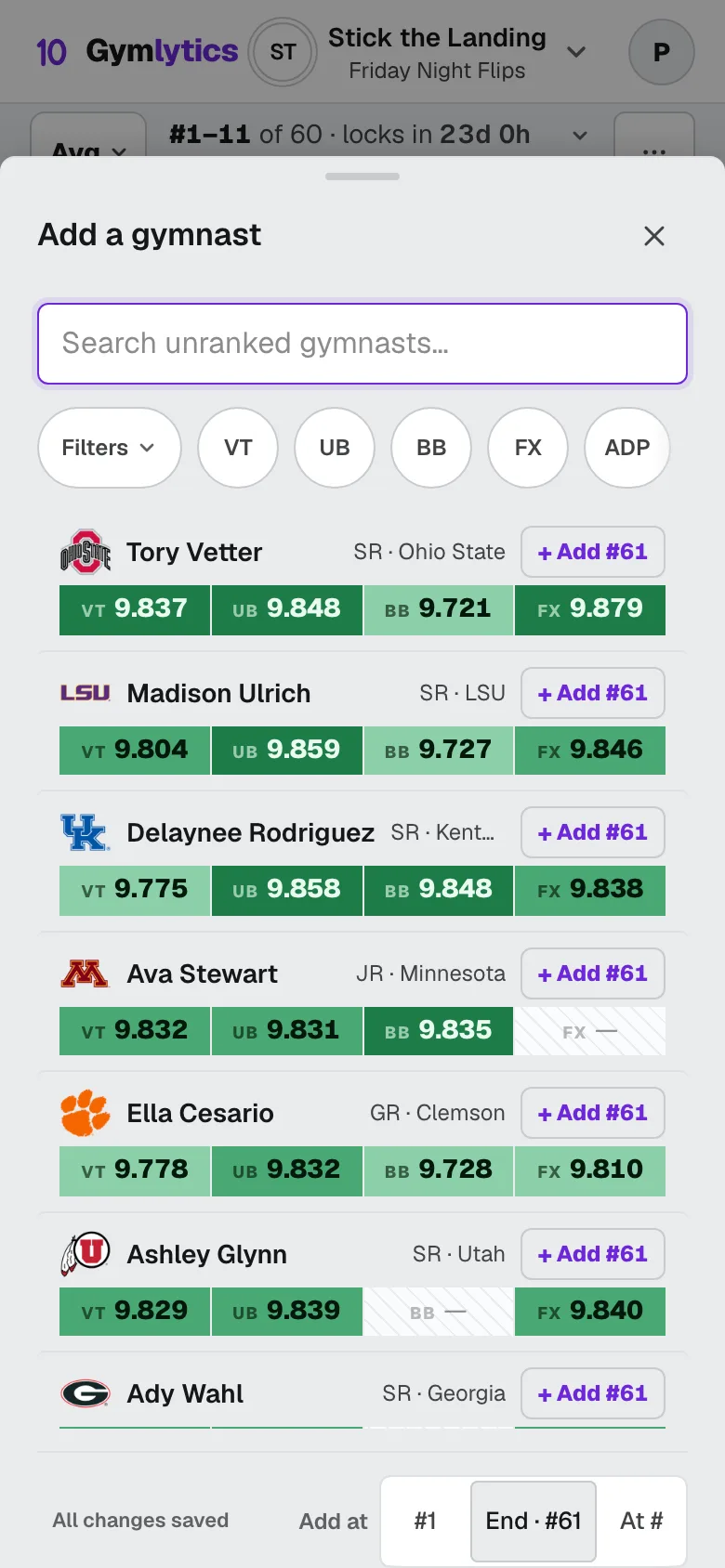
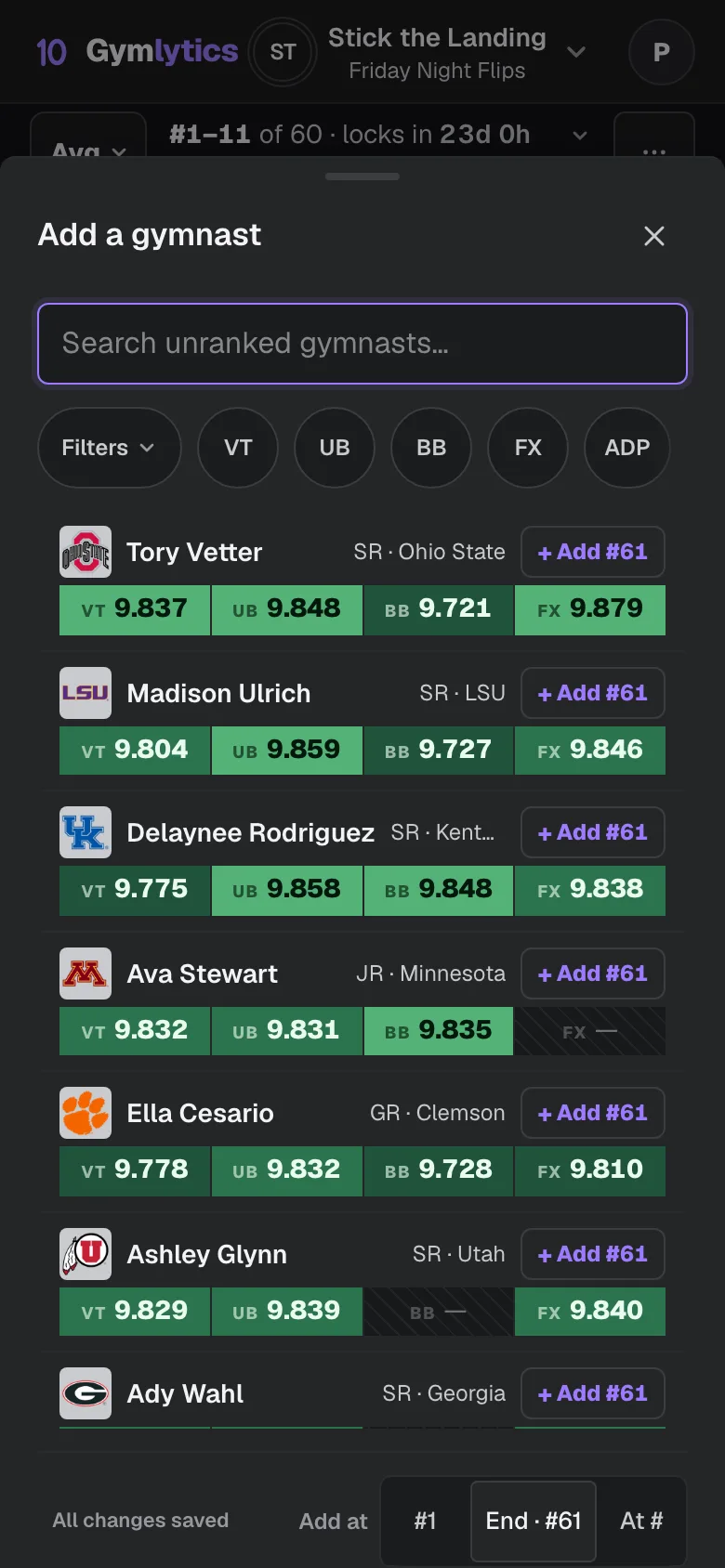
Tap Add a gymnast on a phone, or use the Add gymnasts panel on a computer. Search by name in Search unranked gymnasts…, or narrow the field with Filters: event, minimum score, class, division, conference and school. The event chips sort by that event’s average.
Add at decides where new gymnasts go: #1, the End of your list, or At # a rank you type. Each row’s button says where she will land, for example + Add #61.
Putting them in order
- Drag a row by its handle (⋮⋮).
- Type a rank in the box on the left of a row to send her straight there.
- Swipe on a phone: right to send a gymnast to #1, left to remove her. Undo appears for a few seconds after either.
- Keyboard on a computer: focus a row’s handle, press Space to lift it, move it with the arrow keys (Shift moves ten), and press Space again to drop it.
Every change saves as you make it. There is no save button.
ADP
ADP (average draft position) is where a gymnast has been going in other drafts on Gymlytics, refreshed every 15 minutes. It shows on each row once there are drafts to count. Sort: ADP reorders the view by it so you can compare. Your saved order is unchanged, and the draft still uses your order.
Import a spreadsheet
If you keep rankings in Excel or Google Sheets, open the ⋯ menu and choose Import from a spreadsheet….
- Download the template. Its All gymnasts tab lists everyone you can draft.
- Put your gymnasts in order, one name per row in the Name column, best first. School is optional; add it when two gymnasts share a name.
- Save it as .xlsx and upload it. Google Sheets and Numbers both download as .xlsx.
- Check the matches. Matching isn’t perfect, so look over the list before importing.
- Choose what happens to your current list: Replace it, or Add to the end (anyone already on it is skipped).
The same menu has Copy another team’s list…, which replaces this list with one from another of your teams, and Export to Excel.
Limits and the lock
- A list holds up to 1,000 gymnasts.
- The list locks once your team is drafted. In a live room it keeps working as your queue until then (the live draft room).